Sora 2‘s Cameo feature lets you create a digital version of yourself for AI-generated videos. By uploading a short video and audio clip, you can reuse your likeness in multiple projects without filming new footage. This tool is ideal for creators and businesses looking to save time and streamline video production. Key highlights:
- Setup: Record a well-lit video with clear audio using an iPhone. Android support is coming soon.
- Customization: Adjust your Cameo’s look and privacy settings to fit your needs.
- Usage: Add your Cameo to videos by typing
@usernamein the prompt. Choose resolutions from 720p (free) to 4K (Pro plan). - Applications: Perfect for marketing, education, retail, fitness, and more.
This feature simplifies video creation, ensuring a polished and professional output with minimal effort.
How to Create and Use Sora 2 Cameo Feature in 5 Steps
Getting Ready to Create Your Cameo
What You Need to Get Started
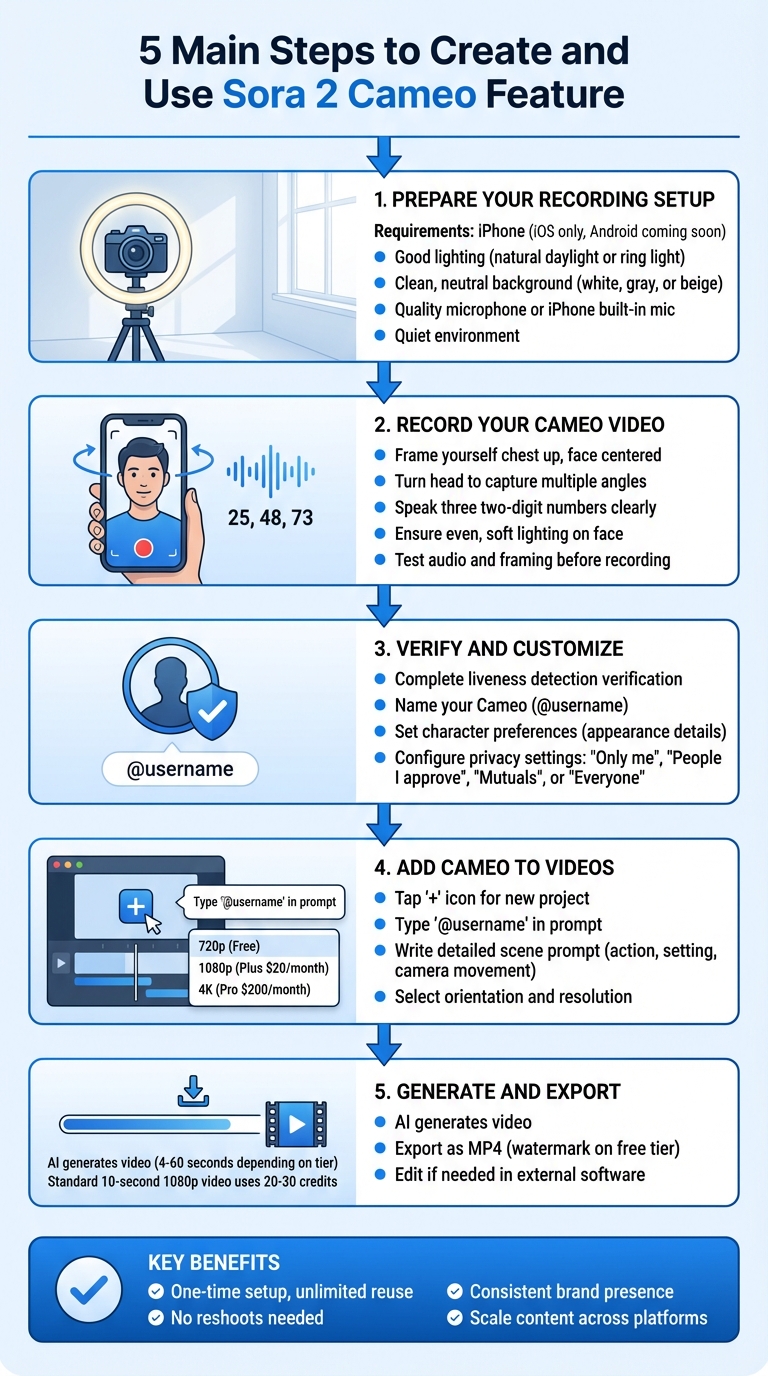
To create your Cameo, you’ll need an iOS device – specifically an iPhone. While Android compatibility is on the horizon, the process currently requires the Sora app on iOS.
Set up your recording space for the best results. Aim for good lighting, like natural daylight or a ring light, and choose a clean, neutral background – plain white, gray, or beige works well. Use a quality microphone or rely on your iPhone’s built-in mic, but make sure you’re in a quiet environment. This setup helps ensure your recording meets the quality standards needed for a polished Cameo.
How to Record High-Quality Input
The quality of your video and audio is crucial because it directly affects how your Cameo will look and sound. Low-quality recordings can result in distorted facial expressions, awkward proportions, or unclear dialogue accents. Frame yourself from the chest up, keeping your face centered and evenly lit with soft, diffused light. Speak clearly and confidently. Before hitting record, test your lighting, framing, and audio to ensure everything is just right. A strong recording now makes for a smoother process later, especially when it comes to managing your likeness and permissions.
Likeness Rights and Permissions
Your recording serves two purposes: it verifies your identity and grants Sora 2 the right to use your likeness. You have complete control over who can access your Cameo through privacy settings. Options include "Only me", "People I approve", "Mutuals", or "Everyone". If your Cameo includes someone else, make sure to get their written consent before proceeding.
"With characters, you are in control of your likeness end-to-end with Sora. Only you decide who can use your character, and you can revoke access or remove any video that includes it at any time."
At any point, you can revoke access or delete videos featuring your Cameo. If you decide to delete your Sora account altogether, all videos containing your Cameo will be removed within 30 days.
How to Create and Save Your Cameo
Step-by-Step Creation Process
To get started, open the Sora app on your iPhone and head to the Cameo setup section. You’ll need to record a short video that captures both your face and voice. Follow the instructions on screen, which will guide you to turn your head and capture multiple angles for a detailed digital profile.
As part of the process, you’ll be asked to speak three two-digit numbers displayed on the screen. This step confirms your voice and your consent. Make sure you’re in a well-lit area with clear audio, as recommended earlier. Once the video is processed, you’ll see a message saying, “Great. You’re all done.” At this point, your Cameo is ready. The final step is to verify and name your Cameo to complete the setup.
Verifying and Naming Your Cameo
For added security, Sora 2 requires a live video recording with liveness detection to ensure you’re actively involved in creating your Cameo.
Your Cameo will automatically include your username (e.g., @yourusername). You can also customize its appearance by setting specific preferences in the “Character preferences” section. For example, you might specify details like “no logo on the shirt” or “always appear with a fedora” to control how your Cameo looks in generated content.
Input Quality Comparison
| Element | Optimal Setup | Poor Setup |
|---|---|---|
| Lighting | Use natural daylight or a ring light with soft, diffused illumination for subtle shadows. | Avoid harsh overhead lighting, backlighting, or dim spaces that cause uneven exposure. |
| Background | Choose a clean, neutral background (like white, gray, or beige) free from distractions. | Stay away from busy patterns, bright colors, or cluttered areas that compete with your face. |
| Audio Quality | Record in a quiet environment using a clear audio source, like your iPhone mic or an external mic. | Avoid environments with background noise, echoes, or muffled sounds that distort your speech. |
Adding Your Cameo to AI Videos
How to Select Your Cameo in Sora 2
To get started with your Cameo in Sora 2, open the app and tap the ‘+’ icon to begin a new video project. In the prompt window, type ‘@’ followed by your Cameo’s display name or username. This lets the app recognize and integrate your Cameo into the video. If needed, you can combine up to two characters in a single scene for added creativity.
Next, choose the right orientation and resolution for your project. Options include 720p (free), 1080p (available with the $20/month Plus plan), or 4K (available with the $200/month Pro plan). These settings should align with the platform where you’ll share your video. Afterward, focus on crafting a detailed prompt to bring your vision to life.
Writing Effective Scene Prompts
Your prompt serves as the foundation for your AI-generated video. To create a compelling scene, include these core elements: your Cameo, the action, the setting, and camera movement. For example, instead of a simple "person walking", you could write: "@yourusername walking briskly through a sunlit urban park, wearing a navy blue jacket, with a handheld camera following from the side." Adding specifics like clothing, facial expressions, and pacing will lead to more polished results.
Consider the mood and visual style you want. Describe factors like lighting, time of day, and any stylistic preferences. Use action-packed verbs such as "running", "dancing", or "gesturing" paired with pacing terms like "slowly" or "energetically" to control the scene’s flow. Keep the actions realistic to ensure the AI generates natural-looking movements.
Video Settings for US Platforms
Once your scene is ready, adjust the video settings to match the standards of US platforms. Different platforms like YouTube, TikTok, Instagram, and YouTube Shorts have specific requirements for aspect ratio, duration, and resolution. The table below outlines these details:
| Setting | YouTube Main Videos | TikTok/Instagram/YouTube Shorts | Sora 2 Availability |
|---|---|---|---|
| Aspect Ratio | 16:9 (landscape) | 9:16 (portrait) | Both available |
| Duration | Up to 60 seconds | 10-20 seconds typical | 4-60 seconds (tier-dependent) |
| Resolution | 1080p or 4K | 1080p | 720p (Free), 1080p (Plus), 4K (Pro) |
| Watermark | None preferred | None preferred | Free tier only |
Keep in mind that the free tier limits you to 720p resolution with a watermark, while the Plus ($20/month) and Pro ($200/month) tiers offer 1080p and 4K resolution without watermarks. A standard 10-second 1080p video with Cameos will typically use 20-30 credits from your monthly allocation.
Customizing Cameos for Different Uses
Adjusting Visuals for Your Brand
The look of your Cameo begins with the initial video you record – Sora 2 can only generate visuals based on what it captures in that first session. To make sure your Cameo reflects your brand, you can tweak visual preferences through your settings. For instance, you can specify details like "always wear a fedora" or "no visible logos on clothing" to maintain a consistent image across all your videos.
When writing prompts, include clear visual instructions to align with your brand identity. For example, you might say: "@yourusername wearing a white button-down shirt and navy blazer, standing confidently in a modern office with natural lighting." The more precise you are about colors, styles, and other branding details, the more accurately Sora 2 can replicate your desired look. Remember, any changes to your character preferences will only apply to newly generated videos, not ones you’ve already created.
Once you’ve nailed the visuals, it’s time to make sure the audio matches for a cohesive presentation.
Adding Audio and Dialogue
Audio is just as important as visuals when shaping your Cameo’s personality. Sora 2 automatically syncs dialogue, background sounds, and music to your video. If you have specific dialogue, include it in quotes within your prompt and describe the tone – like: @yourusername says "We need to hurry!" in an urgent tone.
To ensure better lip-sync accuracy, keep the number of speakers minimal and clearly define timing for multi-speaker scenes. You can also describe the audio perspective, such as "close-mic dialogue" or "muffled sounds from inside a car", and add ambient details like "gentle ocean waves in the background." In your Cameo settings, use the character instructions field to guide Sora toward the voice characteristics you prefer, avoiding unintended accents or tonal mismatches.
Use Cases for US Industries
With visual and audio customizations in place, Cameos can be tailored for a variety of industry-specific applications in the United States.
- Retail and e-commerce: Create product demo videos where your Cameo showcases items in different scenarios, eliminating the need for multiple takes.
- Real estate: Produce property walkthroughs featuring yourself as the guide, highlighting key features.
- Healthcare: Develop patient education videos that explain procedures or offer wellness advice, all while maintaining a professional and reliable tone.
- Education and training: Use Cameos for explainer videos on various topics. For example, a prompt like "Minimalist classroom: my Cameo explains the water cycle; whiteboard animates simple icons; calm voiceover; captions on" can make learning more engaging.
- Fitness: Demonstrate exercises with precision. A prompt like "Apartment HIIT: my Cameo demos 5 moves with on-screen 20-second timers; percussive clicks for beats" ensures audio and visuals synchronize perfectly with the workout.
Benefits and Limitations
Here’s a quick overview of what Cameos can do and where they might fall short:
| Benefits | Limitations |
|---|---|
| Create videos in minutes without hours of filming | Limited to what was captured in the initial video |
| Consistent look across all content, no reshoots needed | Complex movements may appear unnatural |
| No need for expensive equipment or studio rentals | Relies heavily on well-crafted, detailed prompts |
| Scale content creation for multiple platforms easily | Free-tier videos come with watermarks |
| Reuse your Cameo in unlimited projects | Updates to preferences only apply to new videos |
sbb-itb-0df1f49
Fixing Common Problems
Common Issues and How to Fix Them
If your Cameo looks distorted or doesn’t quite resemble you, the problem often lies in the quality of your original recording. Poor lighting is a frequent offender – shadows can hide key facial details like cheekbones, making it harder for Sora 2 to render them correctly. To avoid this, ensure your recording space has bright, even lighting and that your audio quality is crisp.
Lip-sync issues usually stem from unclear speech or poor enunciation. To fix this, record in a quiet room with minimal echo. Speak clearly at a natural pace, use expressive gestures, and keep the microphone around 6–12 inches away. When reading verification numbers or phrases, stick to the script – don’t add extra words or change the phrasing.
If your Cameo struggles with complex movements or longer scenes, try simplifying things. Start with basic prompts and avoid overly dynamic actions. Reducing the number of elements in the frame can help maintain accuracy. Keep in mind that Sora 2 can only replicate what’s captured in your original video. If you ask for expressions or movements that were never part of your recording, the AI might produce an inaccurate result.
Exporting and Editing Your Video
Once you’ve addressed any issues, you can finalize your video by exporting and editing it. Download your video as an MP4 file – note that free-tier exports will include a watermark. If you need to make adjustments, import the video into your editing software to trim clips, add captions, or include background music. Keep edits minimal if you plan to create multiple Cameos, as consistency across your videos is key.
Troubleshooting Reference Table
| Problem | Likely Cause | Solution |
|---|---|---|
| Blurry or distorted face | Poor lighting or excessive motion during recording | Re-record in bright, even lighting and move your head slowly. |
| Lip-sync doesn’t match dialogue | Background noise or unclear speech | Record in a quiet room and speak clearly with proper enunciation. |
| Verification fails | Obscured features, harsh shadows, or low audio quality | Remove accessories like hats or glasses, improve lighting, and check microphone placement. |
| Missing facial features | Lighting obscures key details | Use natural light to create subtle shadows that define your facial features. |
| Unnatural expressions | Expression wasn’t captured clearly in the original video | Use more exaggerated expressions during recording and adjust prompts accordingly. |
| Likeness breaks down in complex scenes | Too much motion or extreme angles | Simplify your scene by reducing moving elements and avoiding extreme close-ups. |
How to Use Sora 2 Cameos: Put Yourself in AI Videos (Full Tutorial)
Conclusion
Creating a Cameo in Sora 2 is a simple process once you get the hang of it. All it takes is recording a short video and audio clip, verifying your identity through the app, and referencing your Cameo in video prompts. The best part? It’s a one-time setup, meaning you can reuse your digital avatar across countless projects without having to re-record.
For small businesses, this feature can transform video production. It eliminates the need for professional cameras, actors, or costly editing software, making it easier to produce branded content quickly. The time and cost savings allow businesses to focus on creating consistent, engaging videos that enhance brand recognition. With less hassle, you can put more energy into scaling your video strategy.
To ensure your Cameo looks polished, spend extra time on the initial recording. Use bright, even lighting and ensure your audio is crisp and clear – these details make a big difference in how realistic your Cameo appears. Start with straightforward prompts to test its performance and build confidence before tackling more complex scenarios.
If you’re ready to take your video production to the next level, PyxelJam’s AI-powered video production services can manage everything from concept to final delivery. Whether you stick with DIY Cameos or need professional assistance, this technology makes high-quality video content accessible for businesses of any size. It’s a practical way to streamline your workflow while maintaining the quality you need.
Your Cameo becomes a flexible digital asset that works across marketing videos, social media posts, training sessions, and customer interactions. By appearing in multiple videos without additional filming, you can maintain a consistent presence while dedicating more time to growing your business.
FAQs
What are the best tips for creating high-quality Cameo videos with Sora 2?
To produce standout Sora 2 Cameo videos, start with the basics: ensure great lighting in a clean and well-lit space to make your features pop. Find a quiet location to reduce background noise and keep the audio crisp and clear. When recording, aim for steady framing with your face centered and fully visible.
To elevate your video, pay attention to any on-screen prompts, use expressive facial gestures, and don’t shy away from doing multiple takes until you nail it. A bit of preparation can make all the difference in creating a polished, professional-looking result!
What privacy options are available for my Cameo?
You can decide exactly who gets to access or use your Cameo by selecting from these privacy settings:
- Only me: Keep it completely private, visible only to yourself.
- People I approve: Limit access to individuals you personally approve.
- Mutuals: Share exclusively with people you share a mutual connection with.
- Everyone: Open it up to all users without restrictions.
These settings give you the flexibility to tailor your privacy based on what works best for you, whether it’s for personal use or professional sharing.
Can I adjust how my Cameo looks in different videos?
You can customize your Cameo’s appearance to suit the style of each video. By adjusting preferences and permissions, you can make sure your likeness matches the tone, theme, or purpose of your project. This gives you the freedom to create content that feels true to your vision.